WORKSPACE GUIDE · REVIEWED 13 SEPTEMBER 2026
Start with the workspace
Use the sidebar to open Offers, Orders, Connections and Settings. You can create and operate offers directly in the browser. Advanced workflows retain their existing access while the workspace is reviewed; AI is optional.
A checkout around your own offer.
GoCushy helps you sell products, subscriptions and bundles through your own connected payment account. Use the workspace to build offers, review orders, manage connections and help buyers. Connecting an AI client is optional.
You remain the seller. The payment provider processes payments and manages payouts; your configured delivery tells the buyer what happens next. Core web selling does not depend on Pitch, ProductPay or a desktop app.
02 — Setup
Quick start: your first offer.
-
Create your account and review the plan.
Create your account with an email you can access. Account creation alone does not start a paid subscription or trial. Review current plan terms before activation. Your API key is shown once after signup; store it securely if you plan to use API or AI tools.
-
Set up your business and payment provider.
Open Settings for business details and Connections for your payment account. Check the intended provider and Live or Demo environment. Complete the provider’s identity checks yourself and verify that payments are enabled.
-
Create a draft offer.
Open Offers and choose Create offer. Add the product name, price, currency and delivery. Choose one-time, subscription or a supported bundle. Start with a draft while you review the copy and buyer promise.
-
Review, test and publish.
Save the offer’s layout and content, inspect the checkout and test the intended payment and delivery path. A visual preview does not prove provider settlement or your external delivery system. Publish when ready and share the checkout link. Keep real purchase tests separate from no-charge previews.
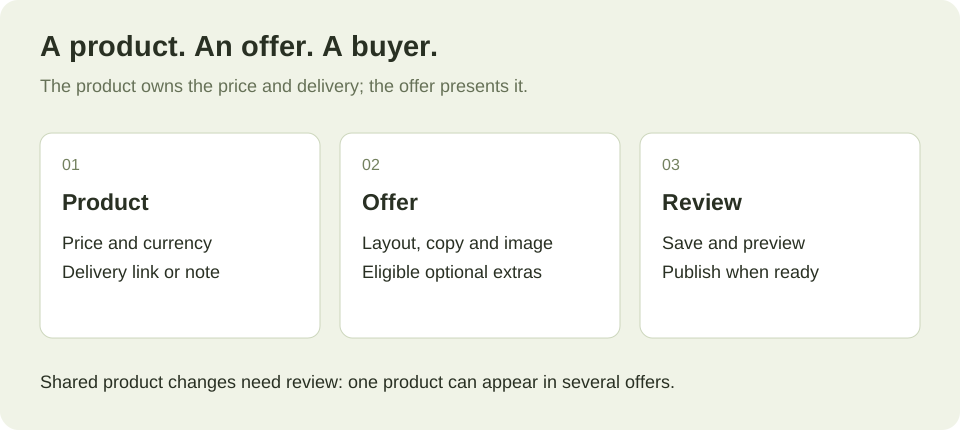
A product is what you sell. An offer is how you sell it.
A product holds its name, price, currency and delivery. An offer presents that product through a checkout. One product can appear in several offers, so a price or delivery edit can affect more than the page you have open.
The workspace’s product editor lists linked checkouts before you save. Currency and billing interval are not changed there. Existing subscription agreements retain their original terms.
- One-time: a product purchased once, with eligible optional bumps and post-purchase offers.
- Subscription: recurring access, with a supported trial when configured. No bumps or post-purchase upsells.
- Bundle: 2–10 one-time products on one checkout, with per-item delivery and supported bundle pricing. No order bumps.
A draft is not buyable. Publish only after checking delivery and payment setup. Archive preserves order history; restoring returns an offer to draft. Read the product and lifecycle guide.
Choose a layout. Make the offer clear.
Choose Standard, Compact or Hero in the offer editor, then save before previewing. Standard uses two columns on larger screens; Compact keeps one column; Hero adds a full-width image. Hero without an image behaves like Standard.
Add your headline, benefits, image, real testimonials and actual guarantee. You can upload an image or use a supported URL; saving the upload does not save the offer until you press Save. Keep price, delivery and support expectations easy to understand.
Simple bump and upsell controls can select an existing product or create a companion product with its own delivery. Additional funnel slots depend on enabled features. Advanced bundle and cart-funnel editing retains its existing access.
Use a hosted link in email or on social. Popup and inline embeds belong on a website. A no-charge preview helps inspect the presentation; it does not verify real provider settlement or external fulfilment. Read the layout guide or explore the designs.
Connect the provider that fits your offer.
In Connections, choose your payment provider and verify its account and environment. Stripe, PayPal and Airwallex have different capabilities. Bank payments and USDC are available only for eligible offers and enabled accounts. Use the payment capability table before combining bundles, trials, coupons or upsells.
Your provider manages payouts and charges its own processing fees. GoCushy does not hold your funds. In Orders, open Manage to investigate the payment. Follow the labelled Stripe, Airwallex or PayPal payment link where available. A test-payment link and Copy payment reference action help locate the transaction in the appropriate provider account.
Plan pricing and access
The current .com monthly plan is US$99/month after a 30-day trial, with 0% added GoCushy platform fees. A card is required to activate the trial. The Free plan is US$0 with a 3% GoCushy platform fee. Processor fees and applicable taxes are separate. Check current pricing and activation terms before joining.
The Worldwide Tax & Affiliates Pack is included in the monthly plan. The published optional Free-plan add-on is +$95 one-time; the actual upgrade offer shown in your account controls the purchase. Existing founding entitlements remain protected. Pro or the pack grants three member seats; holding both does not double the seats.
Refunds
Open Manage on the order and check the amount, items and payment rail before taking a refund action. A refund and a subscription cancellation are different actions. Provider capabilities, permissions and the order’s current status determine what is available. USDC refunds are manual; bank refunds are full and require asynchronous confirmation.
Configure tax from your business facts.
GoCushy’s tax settings use your business details and connected Stripe Tax configuration. You decide where to register and which obligations apply, with your accountant or adviser. The software does not determine your registration obligations or file a tax return.
Review collection settings, registrations and regional rules before selling. Discounts are applied before tax. Post-purchase upsell tax is supported only on the Stripe card rail; do not assume every provider behaves the same way.
Sequential invoices and accounting features depend on the relevant entitlement. Check the buyer’s location, tax breakdown and invoice on a test of the intended payment path. Read the tax and invoice feature guide.
Buyer requests and personal information.
The checkout and receipt can show the seller’s legal note. The buyer portal provides a withdrawal-request control during its configured 14-day window. Requesting withdrawal records the request and notifies the parties; it does not automatically move money. The seller reviews the request and issues any required refund separately.
GoCushy stores and processes order and buyer information to operate checkout, receipts, access and support. Your payment provider also holds its payment records. Being the seller means retaining responsibility for the customer relationship and responding to requests through the systems you use.
These are product mechanics, not a determination that a particular sale, notice or retention policy meets your legal obligations. Review your wording and obligations with an appropriate adviser. See privacy and terms.
Price in the currency you intend to sell.
Choose a product currency when creating it. The standard supported product currencies are USD, NZD, AUD, GBP, EUR and CAD. Review your account’s currency settings in Connections.
Stripe charges in the offer’s currency. Airwallex can offer supported presentment currencies when configured. Check its settlement settings too: the currency the buyer pays and the currency your provider settles are distinct.
Do not add unlike currencies together when interpreting revenue. Read the report’s currency labels and any limitations shown by that report. Review payment-rail behavior.
Keep your accounting connection current.
Use Connections for Xero or QuickBooks. Eligible paid orders and renewals can be sent as invoices using your configured business details and invoice numbering. The accounting features require the relevant entitlement.
Check connection health and any returned error when an invoice does not appear. Confirm the receiving organisation and tax setup before relying on the integration. Your accountant still handles reconciliation, categories and returns. Read the integration guide.
Make the hand-off work for your buyer.
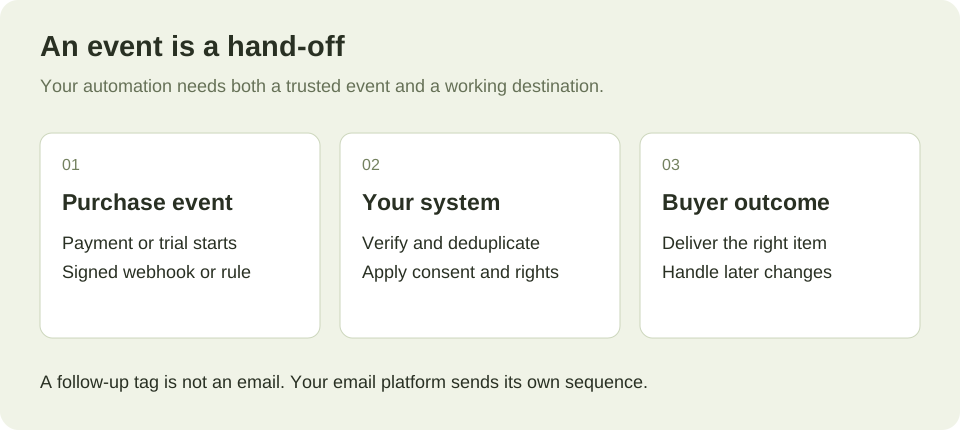
Each purchased product needs a delivery URL, access note or working webhook delivery. This includes every bump, upsell and selected bundle item. The publish checks refuse missing delivery configuration, but you must still test that the destination works and grants the right access.
GoCushy sends purchase receipts and provides the configured next steps. A follow-up rule can add or tag a buyer in your connected email platform. A tag is not an email: your platform sends its own sequence. GoCushy does not remove contacts or unsubscribe them through a follow-up rule.
Direct email integrations include ActiveCampaign, Beehiiv, Brevo, Drip, EmailOctopus, Flodesk, GetResponse, HubSpot, Kit, Klaviyo, Loops, Mailchimp, MailerLite, SendFox and Sendy. Marketing consent controls whether rules run; review the consent behavior before configuring campaigns.
Use signed developer webhooks for your own system, with signature checks and duplicate-event handling. Webhooks are not automatically marketing-consent gated, so your system must apply the relevant choices. Read the developer reference.
Protect the agreement your subscriber made.
Create a monthly or annual subscription with clear renewal terms and configured delivery. Supported trials run for 1–365 days. A coupon combined with a trial works on Stripe; PayPal and Airwallex refuse that combination. Subscriptions do not carry bumps or upsell chains.
A price edit applies to new subscribers, not the agreements of existing subscribers. The buyer portal provides the applicable payment-method and subscription-management route. Cancellation stops future renewals and is separate from refunding an existing charge.
Review rebill reminders, failed-payment recovery and follow-up rules. Access during cancellation, recovery or pause follows the subscription’s actual state and paid period. Read the full subscription lifecycle.
Track recommendations without losing the records.
Open Selling tools to manage your affiliates. Create the affiliate, choose the intended offer and review the effective rate before sharing its link. Short referral links use cushy.link with the affiliate code in the path.
The effective commission rate is locked at purchase. Commission remains in the refund holdback before becoming due; refunds can reverse it. You pay the affiliate through your chosen payment method, then mark the commission paid as a bookkeeping action. Marking it paid does not transfer funds.
The affiliate’s private portal lists their eligible offers, links, rates and commission records. Keep that private link secure. Existing permissions and plan gates still apply.
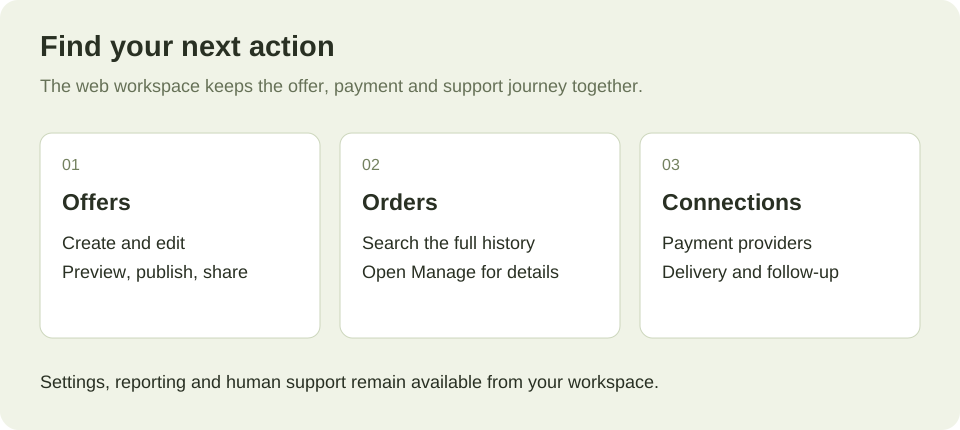
Find the work you need to do.
- Offers
- Create, edit, preview, publish and share. Review shared-product changes; archive and restore without losing order history.
- Orders
- Filter the full order history, open Manage and export the same filtered scope to CSV.
- Connections
- Payment rails, currencies, email, accounting, notifications, webhooks and follow-up rules.
- Selling tools
- Coupons, affiliates and payment requests using the existing server rules.
- Settings and reporting
- Business details, team access, security and reporting remain available. Each person’s permissions still determine what they can do.
- Support
- Send a human support request from the workspace. Existing conversations remain available.
Classic access remains available during staging review, including advanced workflows that have not fully moved into the workspace. No feature retirement is implied by this guide. Read about team permissions.
Connect AI when it helps your work.
An AI client is an optional interface to supported operations. It acts through the API key’s permissions and the server’s rules. Keep the key private, review the account it belongs to and revoke it when it is no longer needed.
The MCP server exposes supported product, offer, order and connection operations; there are 57 in total. The complete tool list names them. Use the prompt library or workflows as starting points, then replace examples with your actual details.
Server-calculated totals are not permission for an agent to change your business without review. Confirm prices, delivery, publication and consequential actions with the merchant. A live checkout URL can accept payment; use a separate test URL for a visual preview.
Before you share the link.
Do I need AI or a desktop app?
No. Create and manage offers in the web workspace. Optional tools do not block the selling journey.
Why will my offer not publish?
Read the returned error. Check delivery for each product, permitted offer combinations and the current account settings. Do not bypass a refusal just to obtain a link.
Does account creation start the trial?
No. Account creation and plan activation are separate. Review the plan checkout and activation confirmation for billing terms.
Can I move an existing business across?
Start with one offer. Recreate and test its payment, receipt and delivery before changing traffic. Existing subscription agreements and buyer access must continue on their original systems until you have an explicit migration plan.
What should I test?
The intended provider and environment, checkout copy and total, optional extras, receipt, purchased-item access and support route. A visual preview alone cannot prove the full flow.